

Prerequisites
Before you begin, ensure:
You have an active Brevo account
You have access to generate an API Key in Brevo
Step 1: Open sysConnector
Navigate to https://app.sysconnector.com/
Log in to your sysConnector account.
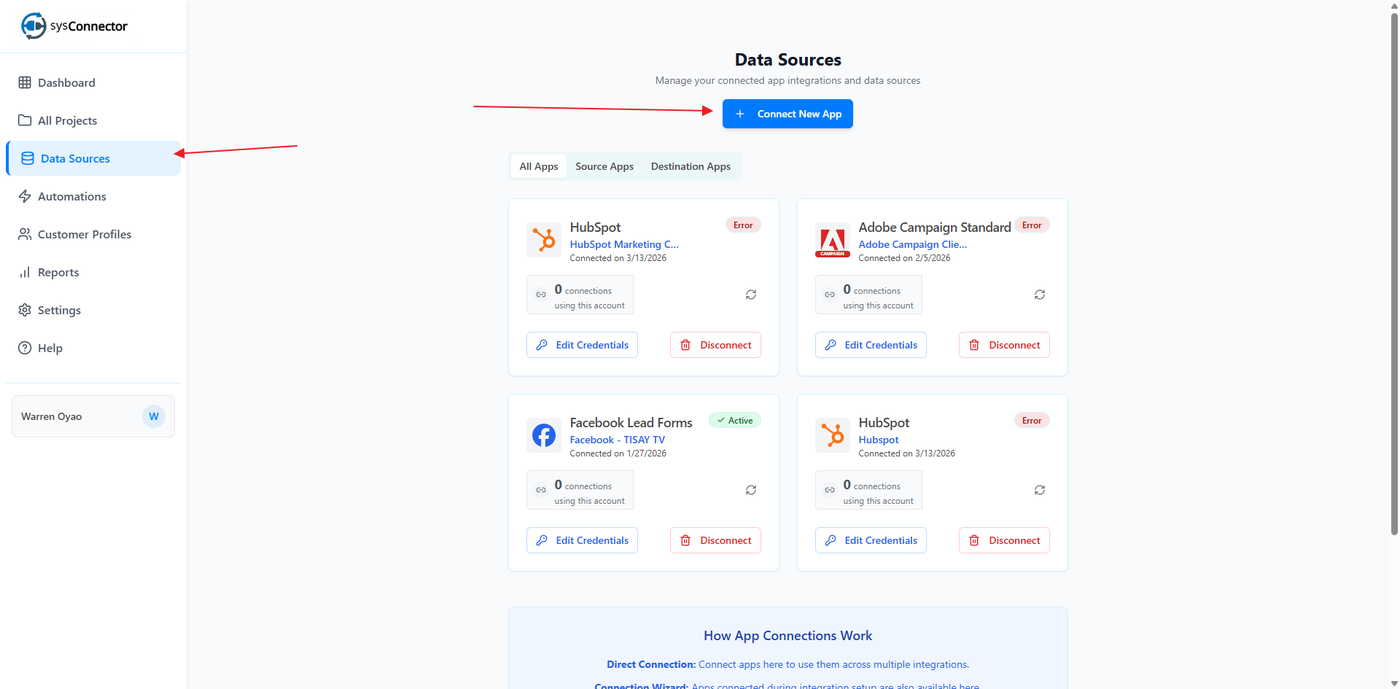
Step 2: Open Data Sources
Click Data Sources from the left-hand menu.
Click Connect New App.
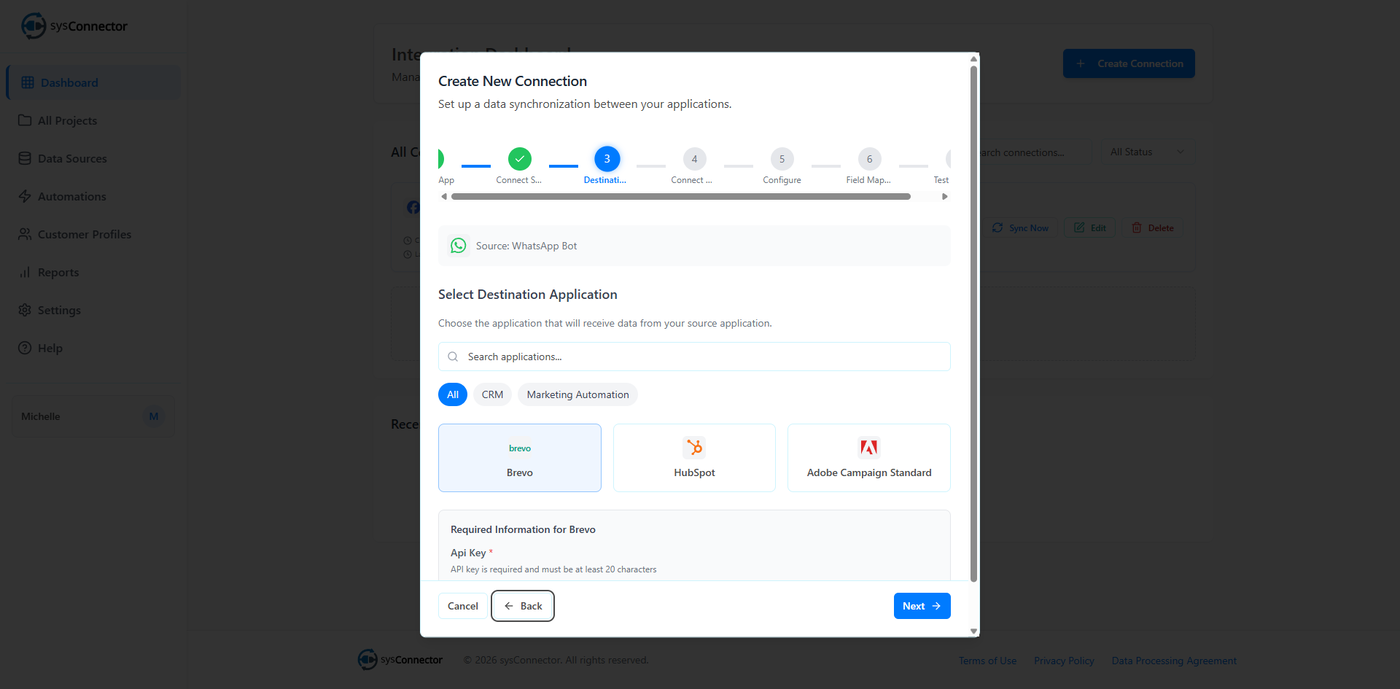
Step 3: Select Brevo
From the list of available integrations, select Brevo.
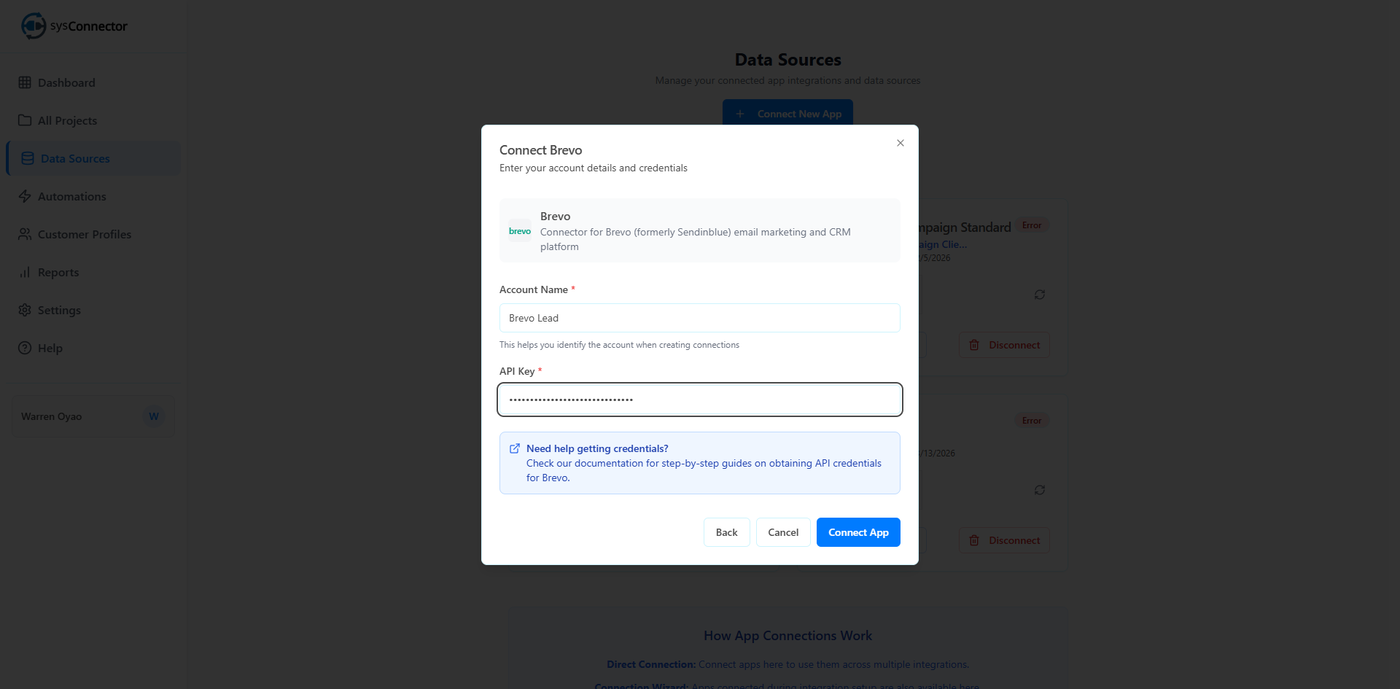
Step 4: Enter Brevo API Key
In the connection screen:
Paste your Brevo API Key into the required field
Click Connect
Where to Get Your Brevo API Key
To generate your API key:
Log in to your Brevo account
Click your profile name (top-right corner)
Go to Settings → SMTP & API → API Keys
Click Generate a new API key
Enter a name (e.g., sysConnector)
Click Generate
Copy the API key
Important:
Your API key is only shown once — make sure to copy and save it
If you lose it, you will need to generate a new one
Step 5: Confirm Connection
You will see a success message:
App Connected – Your app has been connected successfully
Your Brevo integration is now active.
You’re All Set!
sysConnector is now connected to your Brevo account, and your data will begin syncing automatically.