

Prerequisites
Before you begin, ensure:
You have a Google account with access to Google Sheets
You have access to Google Cloud Console with permission to create API credentials (API Key)
Step 1: Open sysConnector
Navigate to https://app.sysconnector.com/
Log in to your sysConnector account.
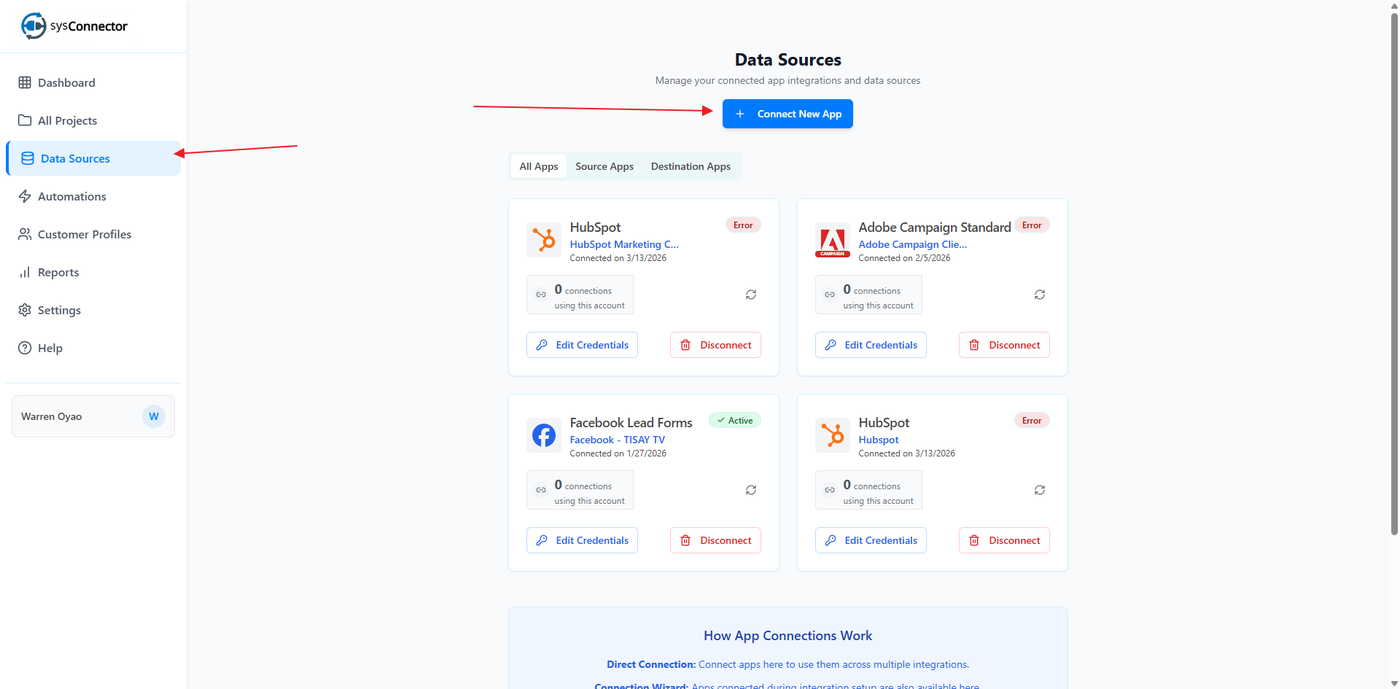
Step 2: Open Data Sources
Click Data Sources from the left-hand menu.
Click Connect New App.
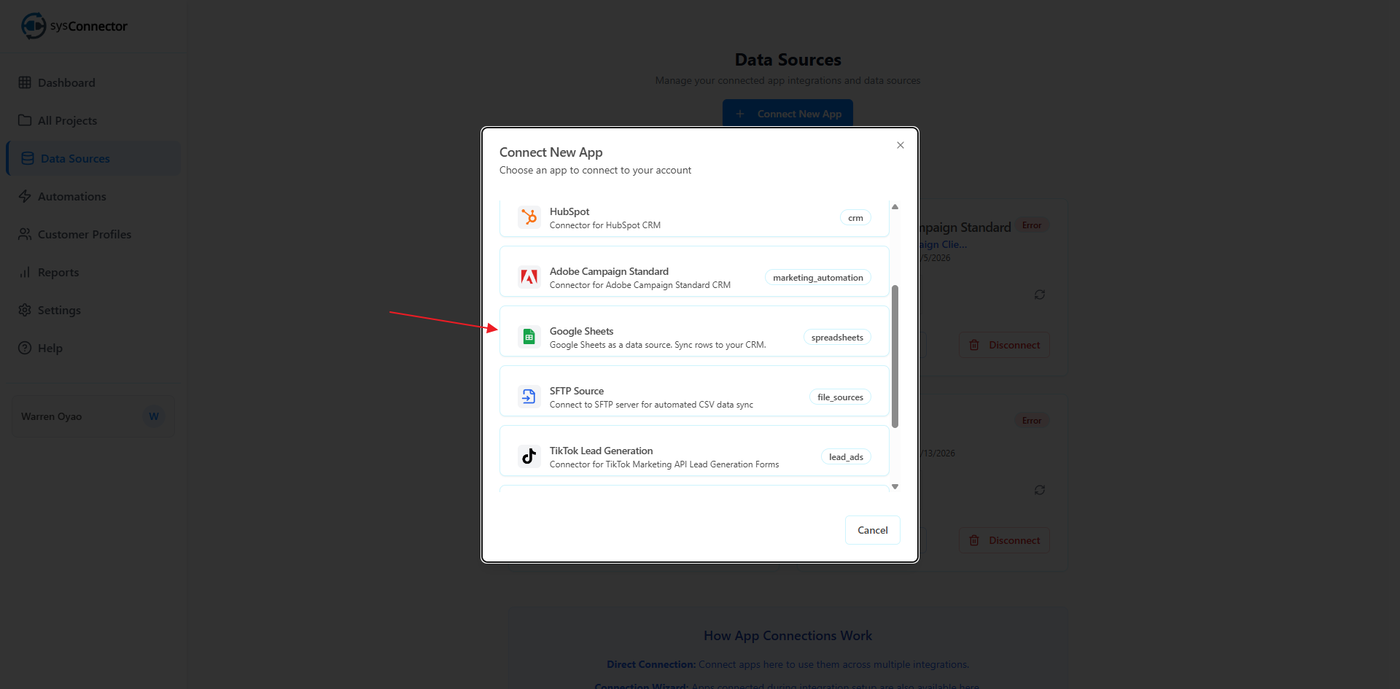
Step 3: Select Google Sheets
From the list of available integrations, select Google Sheets
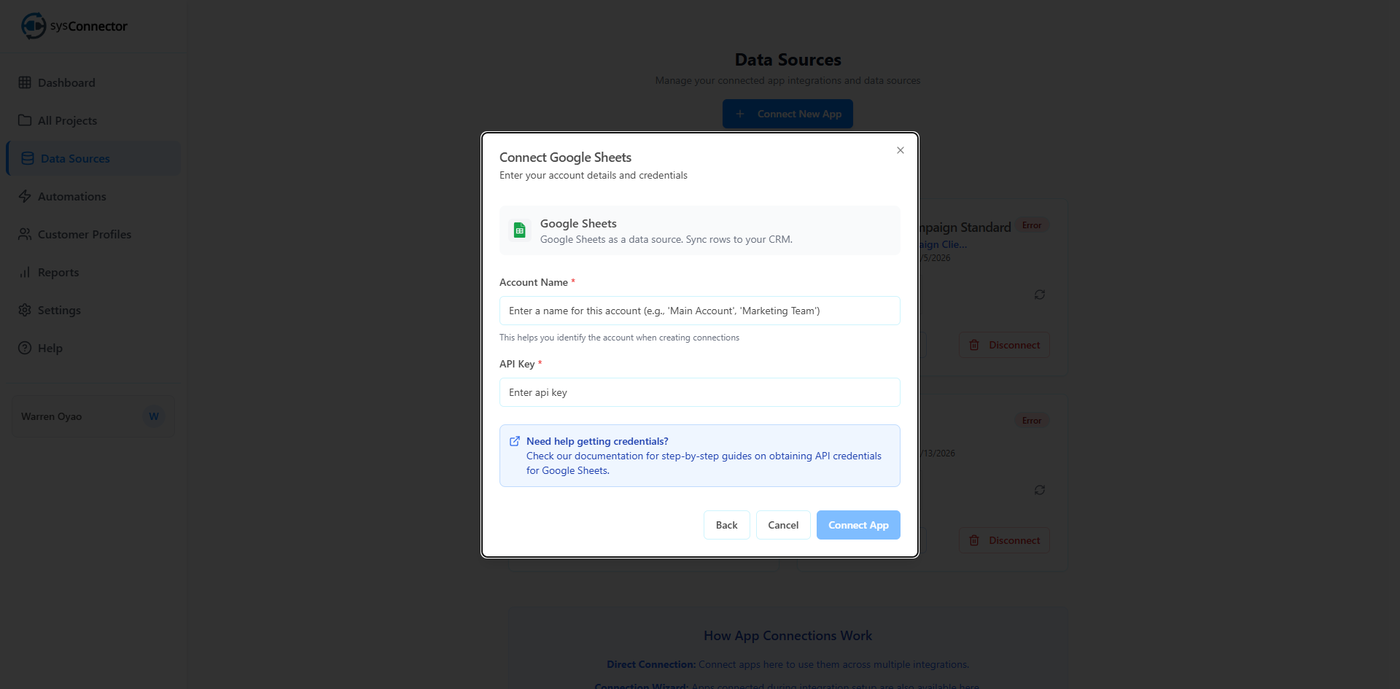
Step 4: Enter Google Sheets API Details
In the connection screen:
Account Name *
Enter a name (e.g., Main Account, Marketing Team)
Used to identify this account later
API Key *
Enter your Google Sheets API Key
Click Connect
Where to Get Your Google Sheets API Key
To generate your API key:
Go to Google Cloud Console: https://console.cloud.google.com/
Sign in with your Google account
Create a new project (or select an existing one)
Navigate to APIs & Services → Library
Search for and enable Google Sheets API
Go to APIs & Services → Credentials
Click Create Credentials → API Key
Copy the generated API key
Important:
Keep your API key secure and do not share it publicly
You can restrict the key for added security (recommended)
If compromised, regenerate a new API key immediately
Step 5: Confirm Connection
You will see a success message:
App Connected – Your app has been connected successfully
Your Google Sheets integration is now active.
You’re All Set!
sysConnector is now connected to your Google Sheets account, and your data will begin syncing automatically.