

Prerequisites
Before you begin, ensure:
You have an active HubSpot account
You have Admin access to the HubSpot portal
You can create a Private App (Access Token) in HubSpot
Step 1: Open sysConnector
Navigate to https://app.sysconnector.com/
Log in to your sysConnector account.
Step 2: Open Data Sources
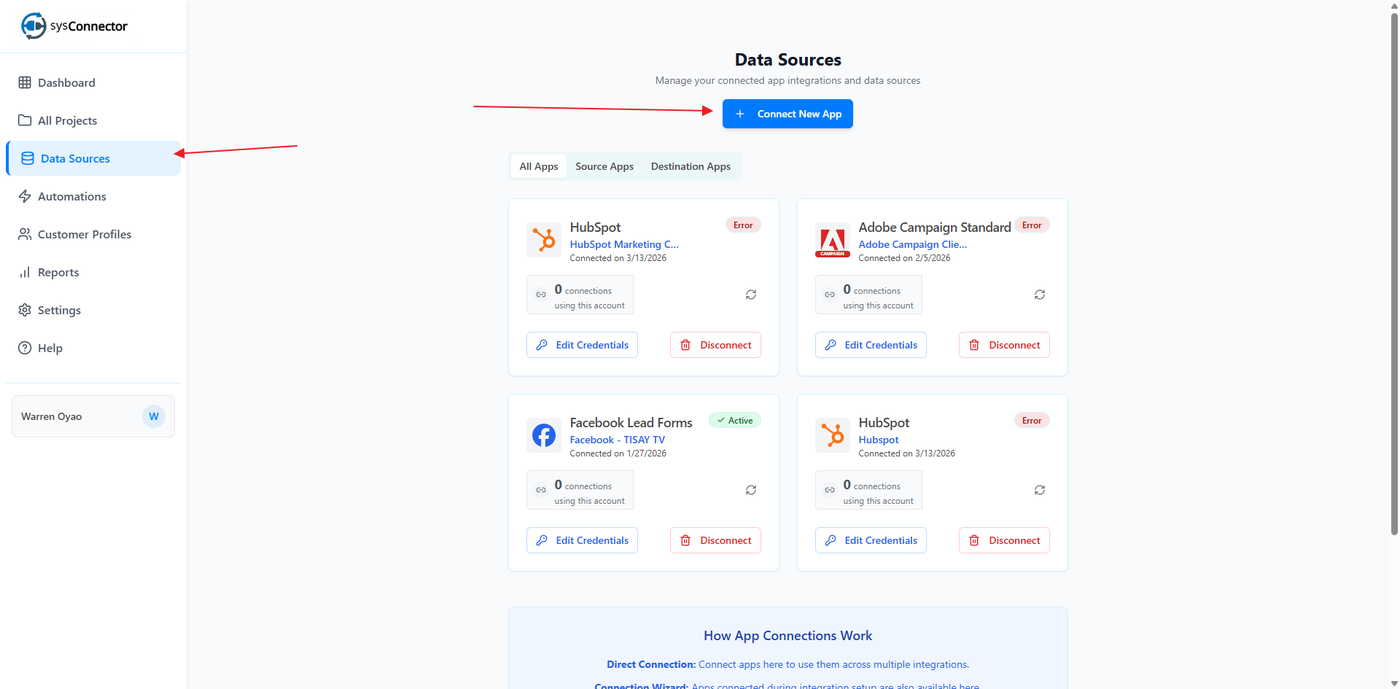
Click Data Sources from the left-hand menu.
Click Connect New App.
Step 3: Select HubSpot
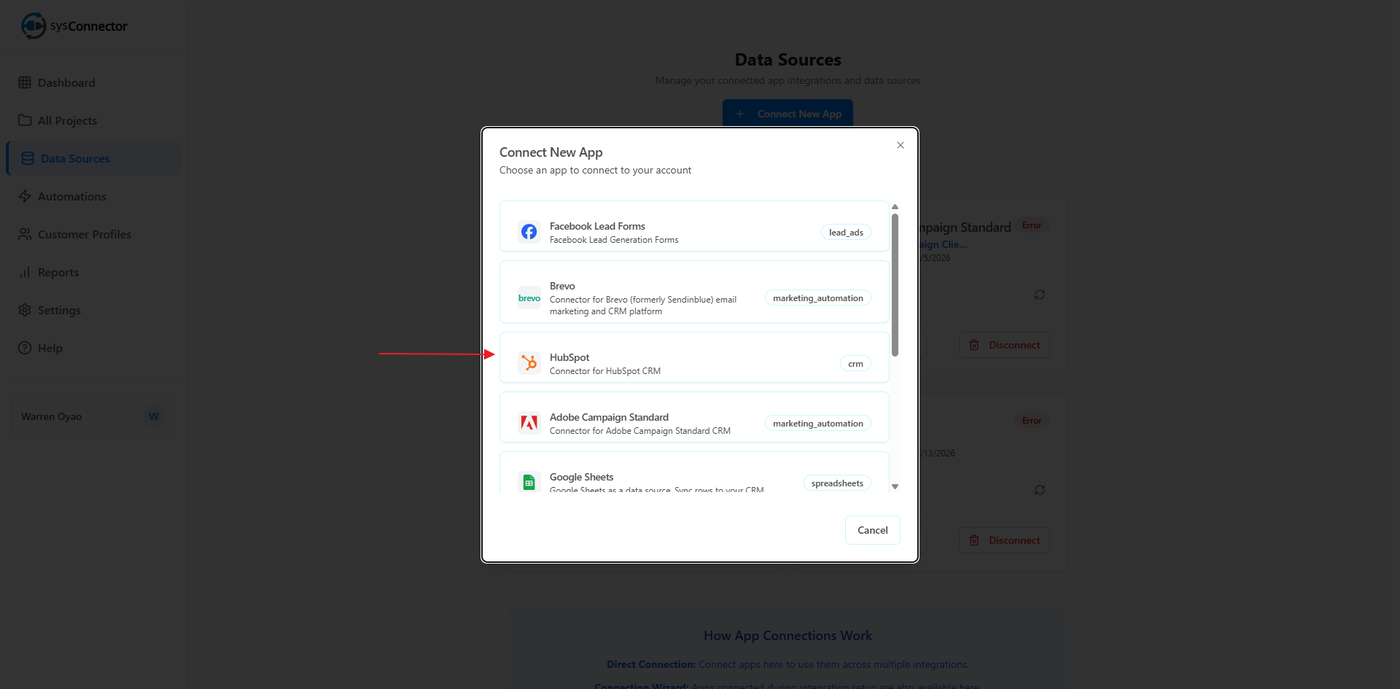
From the list of available integrations, select HubSpot.
Step 4: Enter HubSpot Access Token
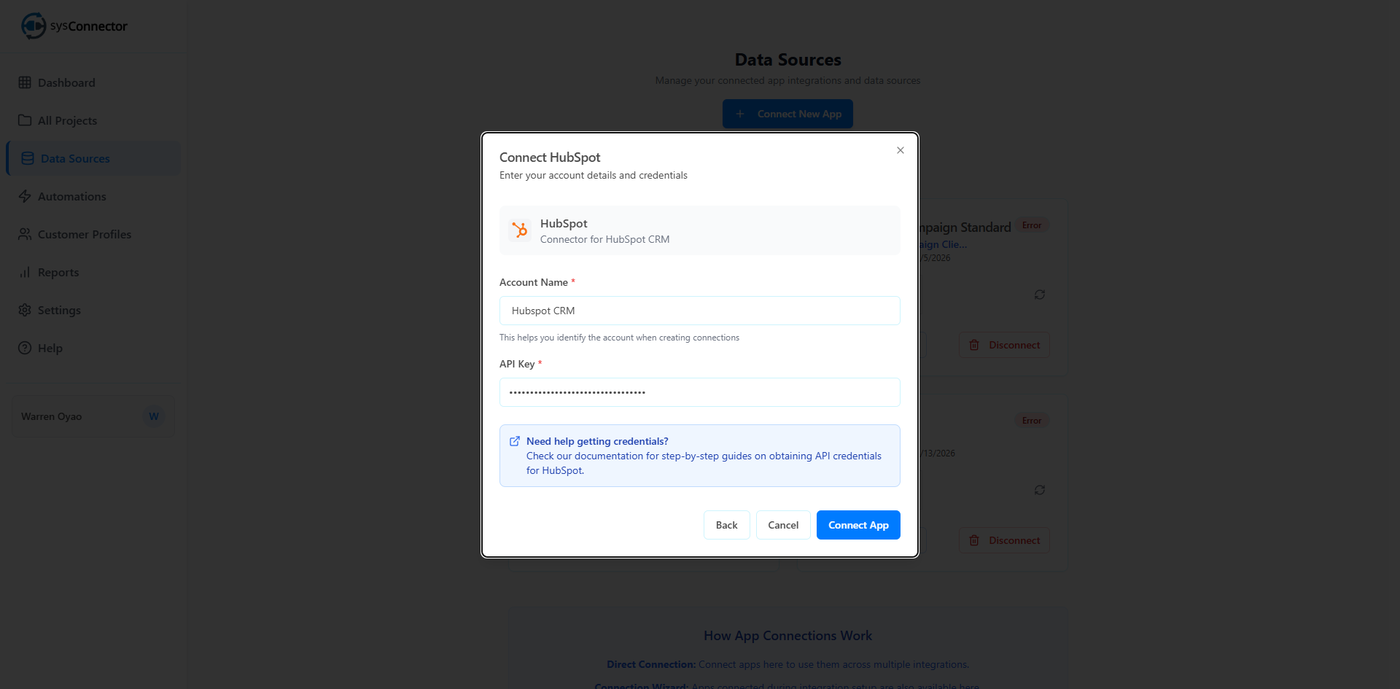
In the connection screen:
Paste your HubSpot Private App Access Token into the required field
Click Connect
Create a HubSpot Private App (Get Access Token)
To generate your access token:
Log in to your HubSpot account
Click the Settings (gear icon) in the top navigation bar
In the left sidebar, go to Integrations → Private Apps
Click Create a private app
Enter a name for your app (e.g., sysConnector Integration)
Set Required Scopes
Under the Scopes tab, select the permissions required for your use case (e.g., contacts, companies, deals, etc.)
Click Create app
Copy the Access Token
Important Notes
Keep your Access Token secure — it provides direct access to your HubSpot data
Do not share it publicly or in unsecured channels
If compromised, you can regenerate the token from the Private Apps section
Step 5: Confirm Connection
You will see a success message:
App Connected – Your app has been connected successfully
Your HubSpot integration is now active.
You’re All Set!
sysConnector is now connected to your HubSpot account, and your data will begin syncing automatically based on the configured scopes.