

Prerequisites
Before you begin, ensure:
You have a Salesforce account with administrator access
You have permission to create Connected Apps in Salesforce
You have access to create API integrations in Salesforce
Step 1: Open sysConnector
Navigate to https://app.sysconnector.com/
Log in to your sysConnector account.
Step 2: Open Data Sources
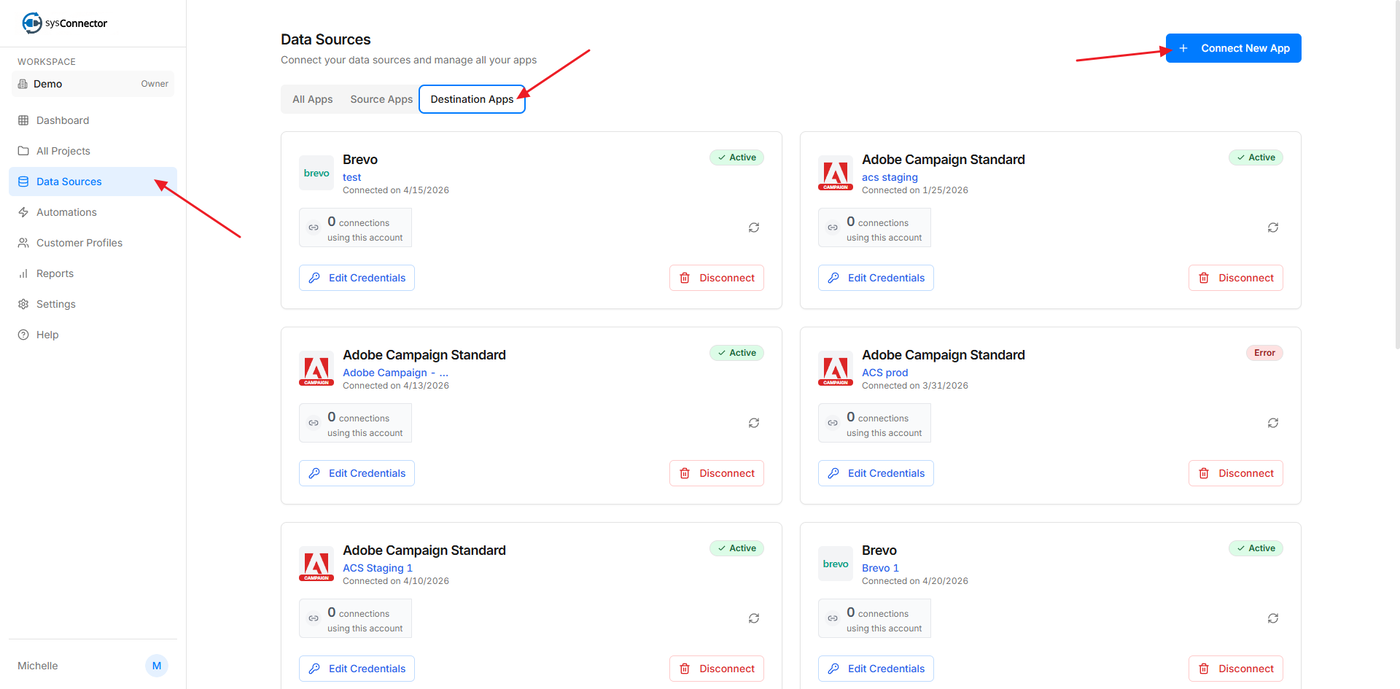
Click Data Sources from the left-hand menu.
Click Connect New App.
Step 3: Select Salesforce
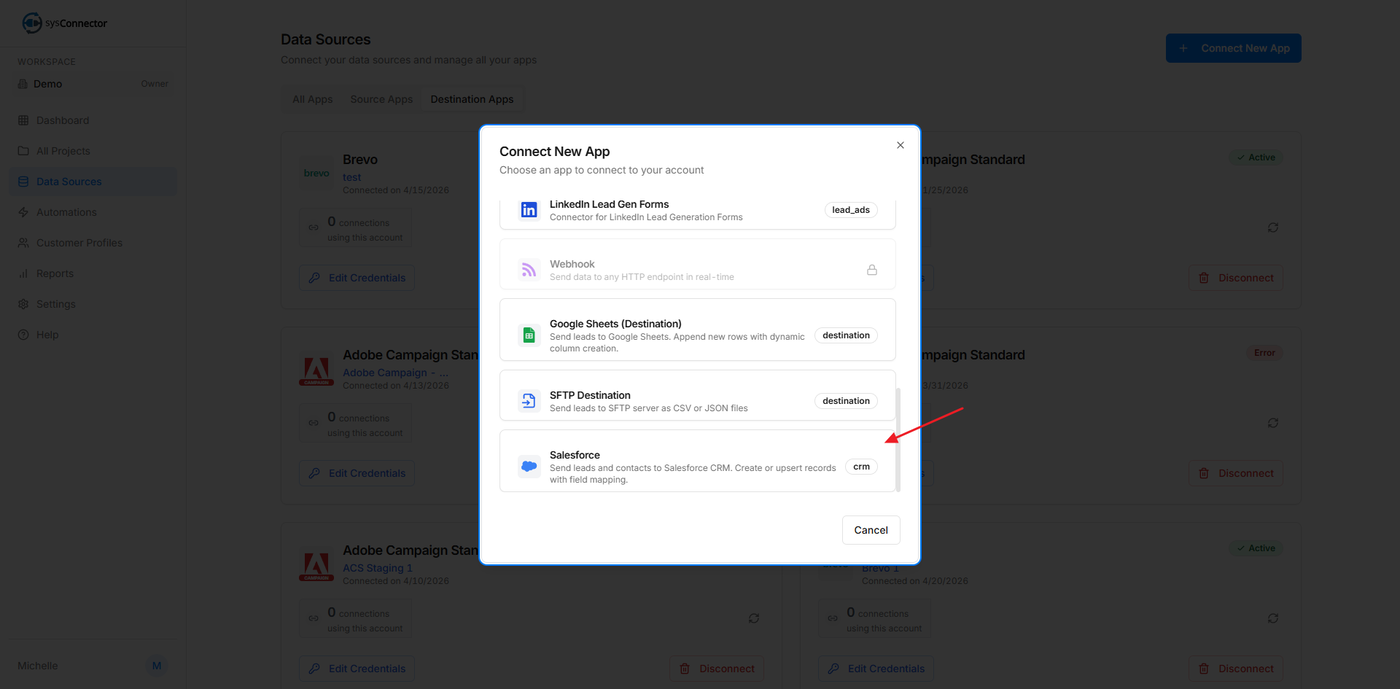
From the list of available integrations, select Salesforce (scroll up until the bottom)
Step 4: Connect Your HubSpot Account
In the HubSpot connection screen:
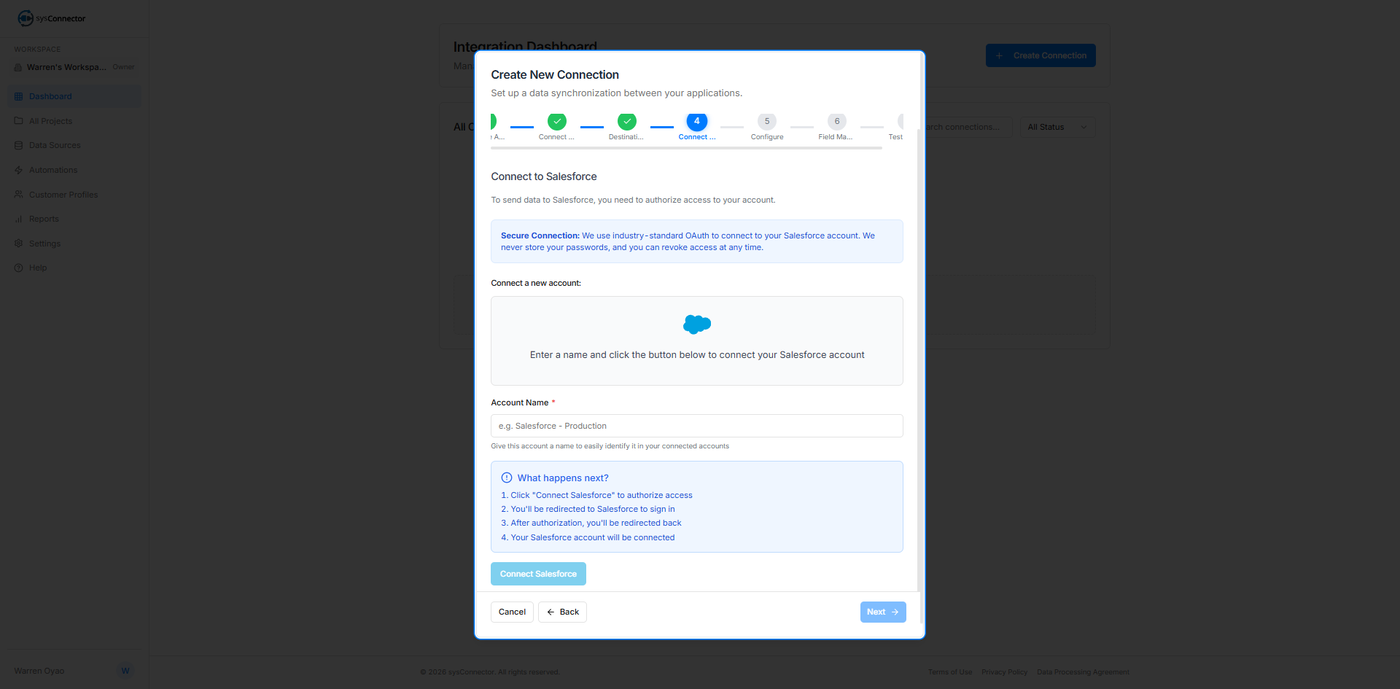
Enter an Account Name to help identify the connection
Click Connect HubSpot
Important Notes
You will then:
Click "Connect Salesforce" to authorize access
You'll be redirected to Salesforce to sign in
After authorization, you'll be redirected back
Your Salesforce account will be connected
Step 5: Confirm Connection
You will see a success message:
App Connected – Your app has been connected successfully
Your Salesforce destination is now active.
You're All Set!
sysConnector is now connected to your Salesforce account, and your data can be automatically sent to Salesforce through your configured destination workflows.