

This document explains how to connect Adobe Campaign to sysConnector.
(Prerequisites) Before you begin, make sure you have the following API information:
Item | Description |
Client ID | OAuth application identifier |
Client Secret | Secret used to authenticate the application |
Tenant ID | Adobe Campaign instance identifier (sometimes called IMS Org or Campaign Tenant) |
If you do not have these details, follow the steps below to obtain them.
Access Adobe Developer Console
Open a browser and go to: https://developer.adobe.com/console
Sign in using your Adobe ID / Enterprise ID
Make sure the correct Adobe Organization is selected (top-right dropdown)
Locate your Adobe Campaign API under Projects
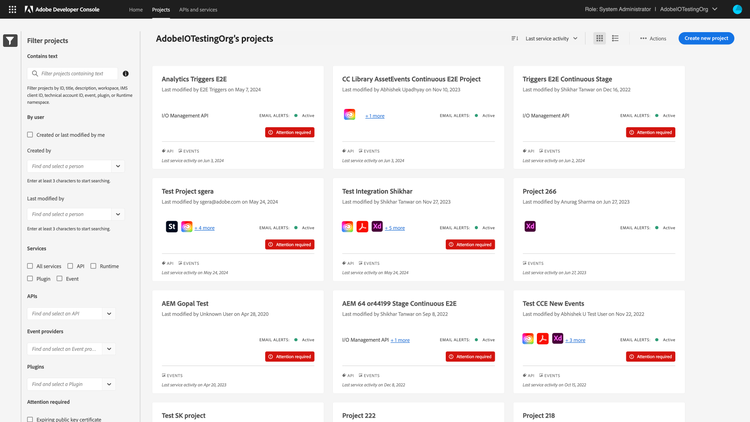
In the project, you will be able to find OAuth Server-to-Server credential details which includes Client ID and Client Secret.

How to obtain the Tenant ID
Open a browser and go to: https://experience.adobe.com
Sign in with your Adobe ID
After login, look at the browser address bar
You will see a URL similar to: https://experience.adobe.com/#/@testingau/home
Identify the value between @ and /home
In this example:
Tenant ID = testingau
URL Pattern Explained
Everything after @ and before the next / is your Tenant ID

Navigate to the sysconnector :https://app.sysconnector.com/
From the main dashboard, click Data Sources.

Click Connect New App to add a new data source.

From the list of available applications, click Adobe Campaign.

Click the Account Name* field and enter a recognizable name for this connection.
Enter the Tenant ID* Details.
Enter the Client ID* Details.
Enter the Client Secret* Details.
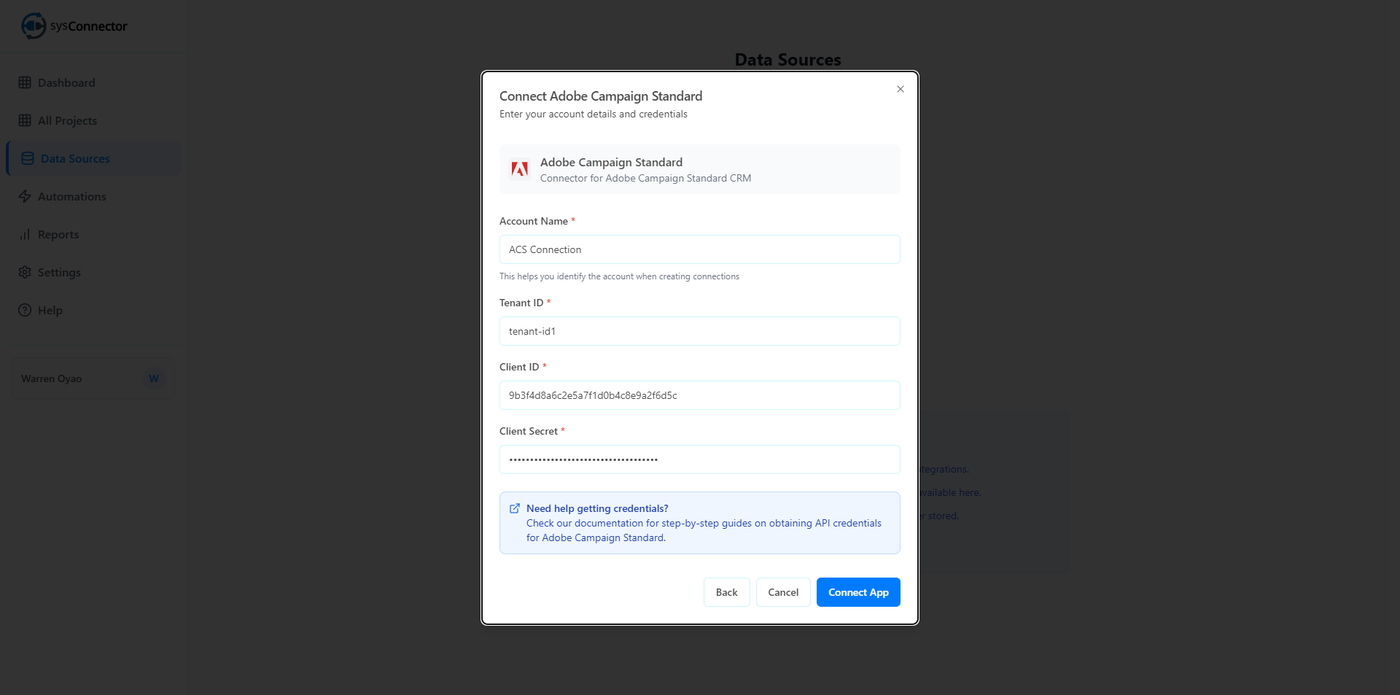
Double-check that all required fields are filled in correctly.
Click Connect App to complete the connection.
Once connected, Adobe Campaign will appear as an available data source in SysConnector and can be used for integrations and workflows.