

This guide walks you through testing whether leads from your Facebook Lead Forms are successfully syncing to your Destination Application using the sysConnector app — without running live ads.
Prerequisites
Before starting, make sure:
You have access to:
Facebook Page and Lead Forms
sysConnector
Destination Application
Your sysConnector connection is already configured and activated
Phase 1: Prepare sysConnector
Before using Facebook’s testing tool, verify your sysConnector setup.
1. Enable Real-Time Sync
In sysConnector, ensure Sync Frequency is set to Event Based.
This ensures leads are pushed immediately after submission.
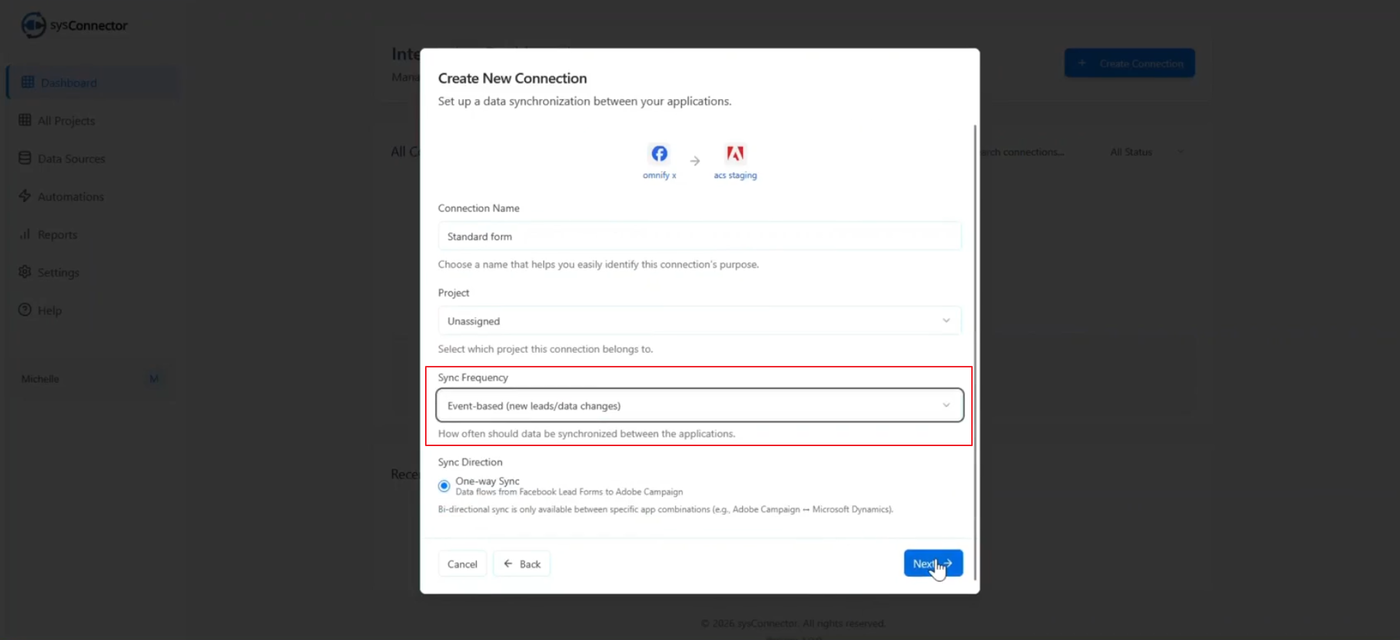
2. Complete Mandatory Mapping Test
You must successfully run a mapping test with sample data in sysConnector.
Connections cannot be activated without this step.
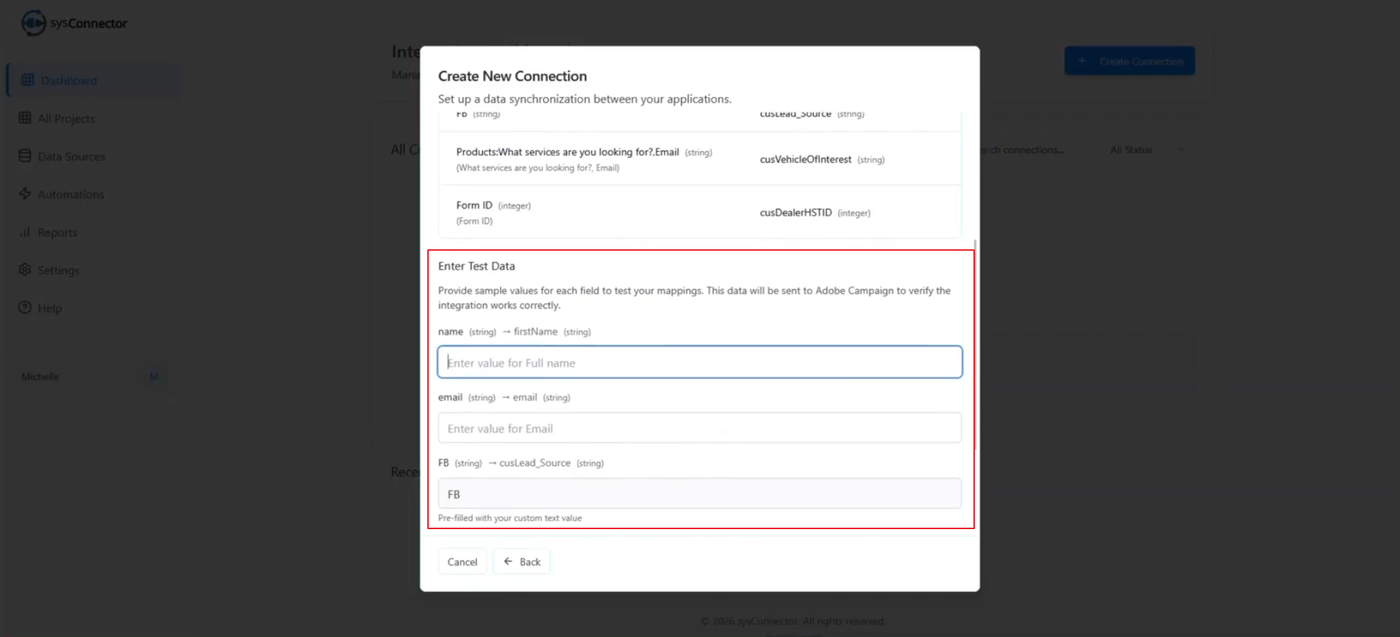
3. Note Your Page and Form Name
Record the exact:
Facebook Page name
Lead Form name (e.g., “Standard Form”)
You’ll need to select the same ones in the Facebook testing tool.
Phase 2: Use the Facebook Lead Ads Testing Tool
This tool lets you generate test leads without publishing ads.
Step 1: Access the Tool
Open the Facebook Lead Ads Testing Tool in your browser.
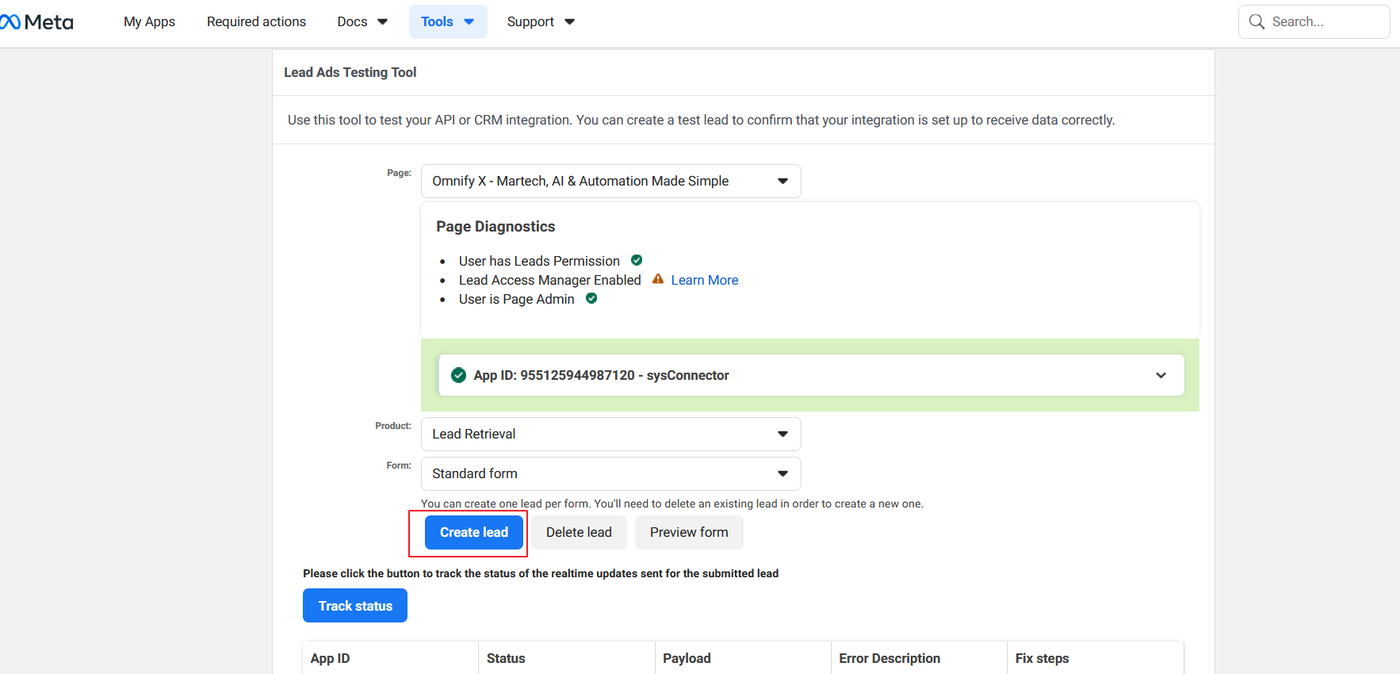
Step 2: Select Your Page and Form
Choose your Facebook Page.
Select the Lead Form connected to sysConnector.
Make sure sysConnector is listed as one of the connected apps (highlighted in green).
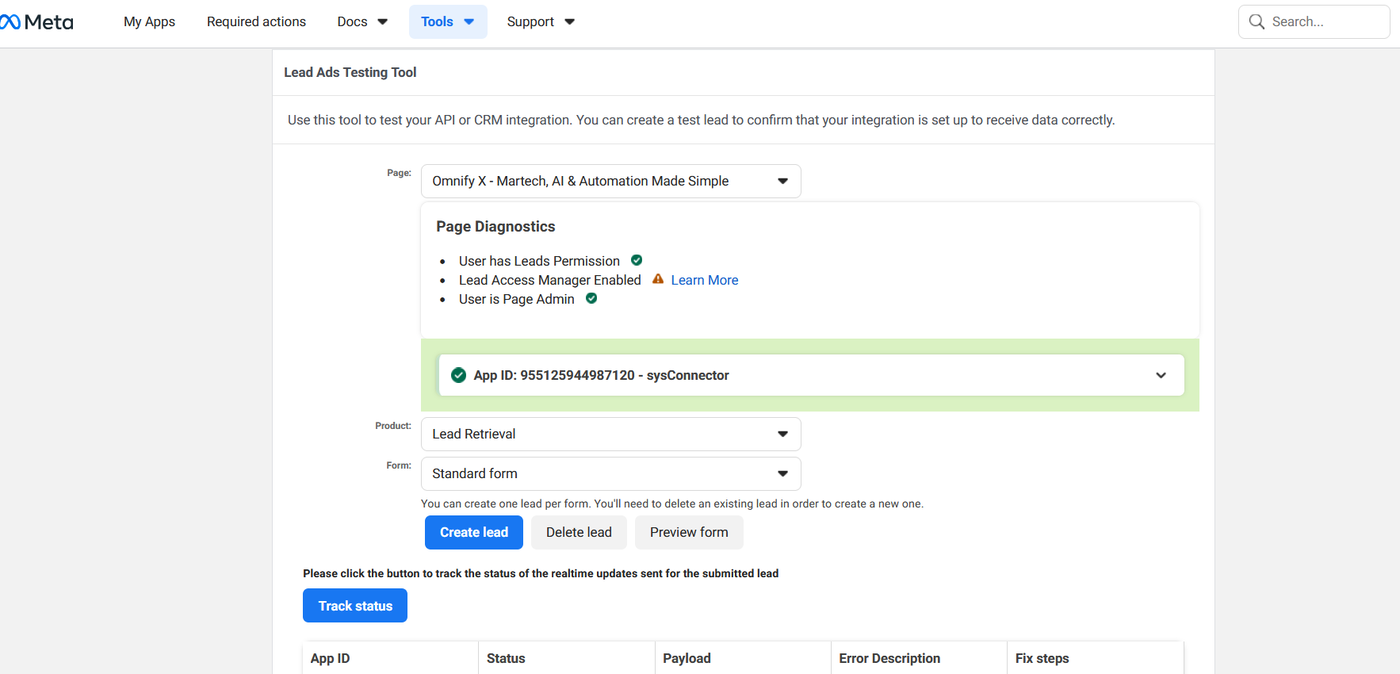
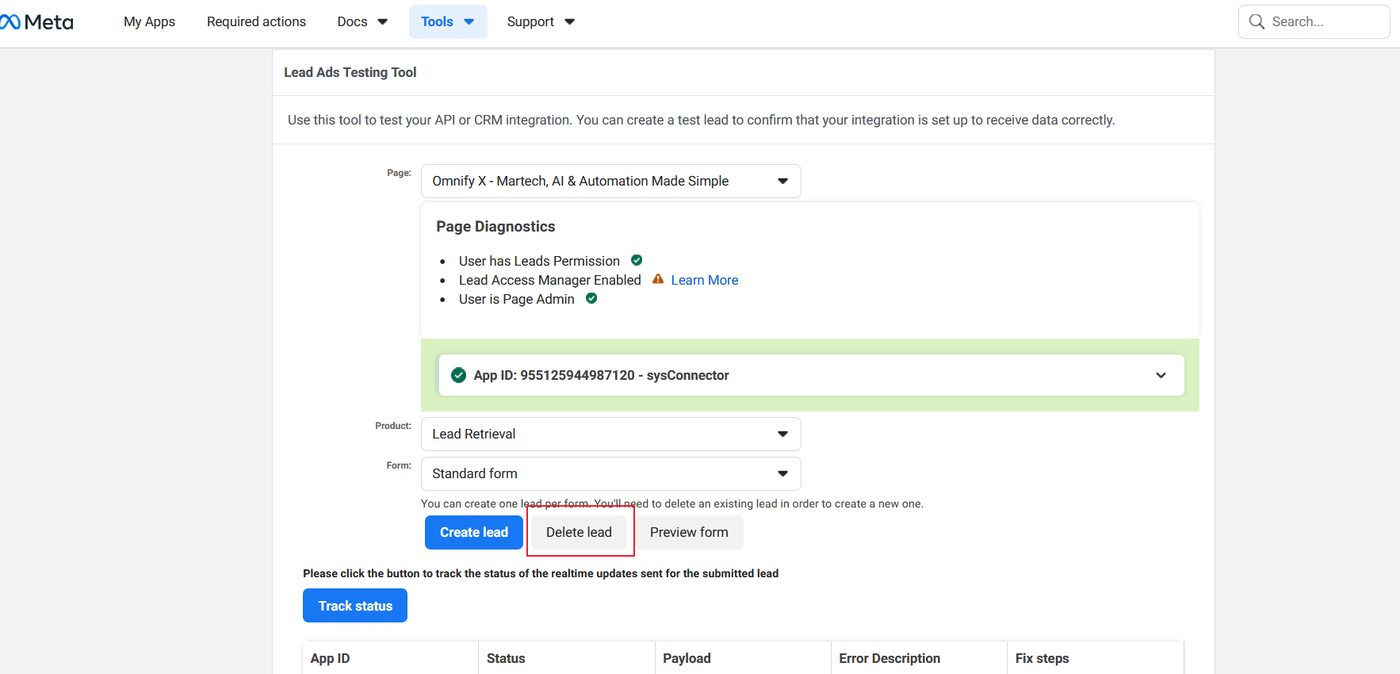
Step 3: Delete Existing Test Lead (If Needed)
Facebook allows only one test lead per form.
If one already exists, click Delete Lead before creating a new one.
Step 4: Create a Test Lead
Option A — Dummy Data
Click Create Lead.
Facebook sends generic sample data automatically.
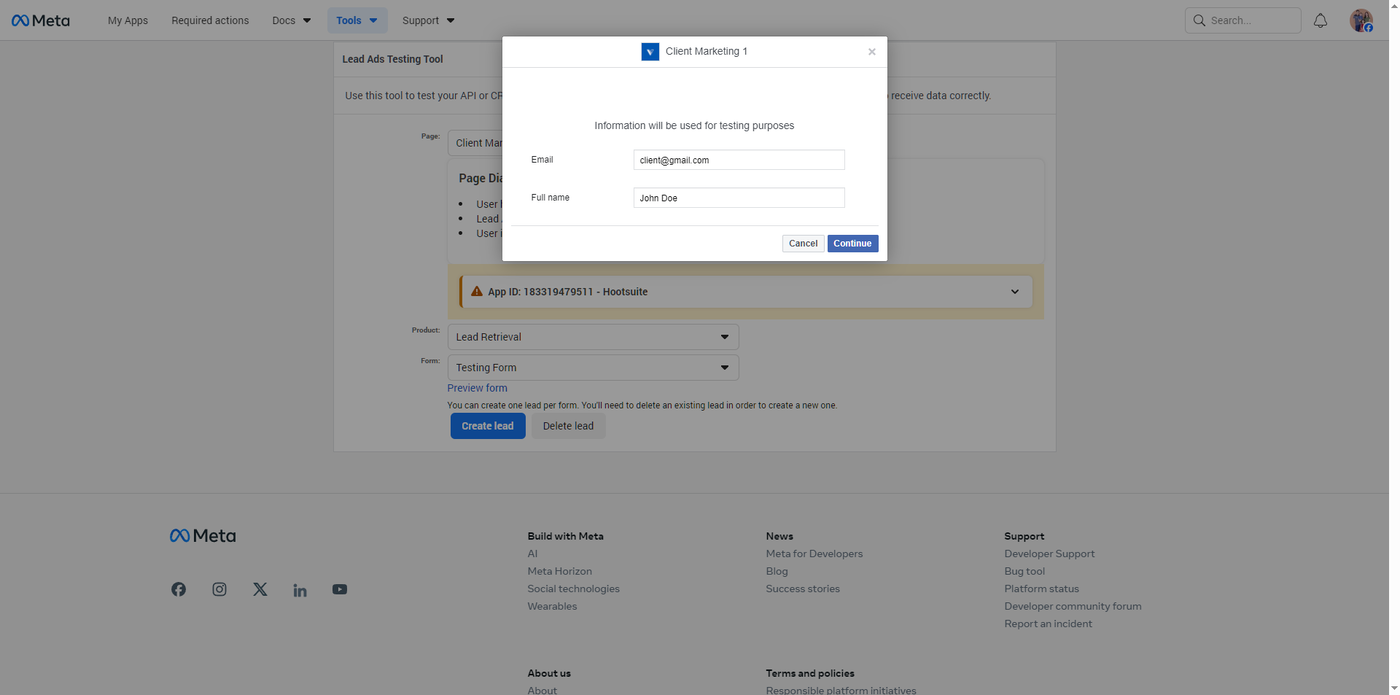
Option B — Custom Data
Click Preview Form.
Complete the form manually (e.g., enter a test email).
Click Submit or Continue.
Phase 3: Monitor and Verify the Sync
After submitting the test lead, verify it across each system.
1. Facebook Testing Tool
Click Track Status.
Status may stay Pending for a few seconds.
Success means the payload was successfully sent.
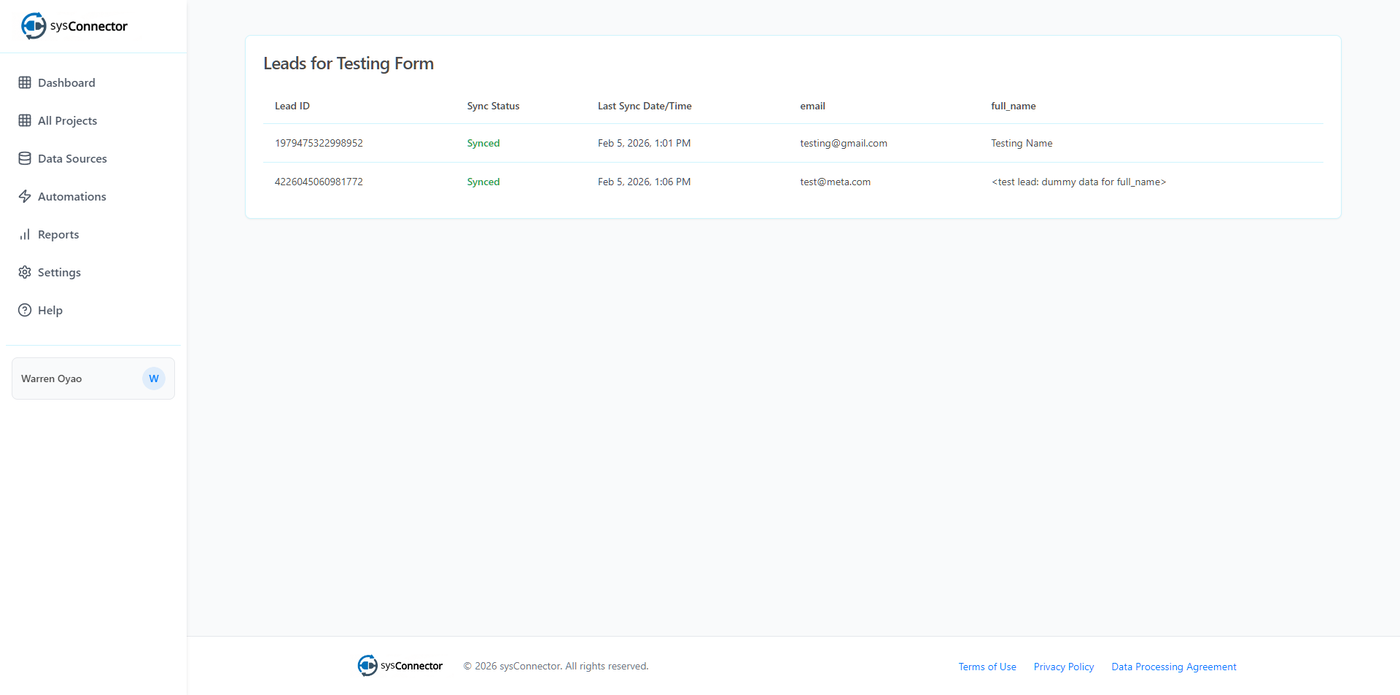
2. sysConnector Preview
Go to Main Dashboard and click Preview Button under All Connections.
Confirm the test lead data appears.
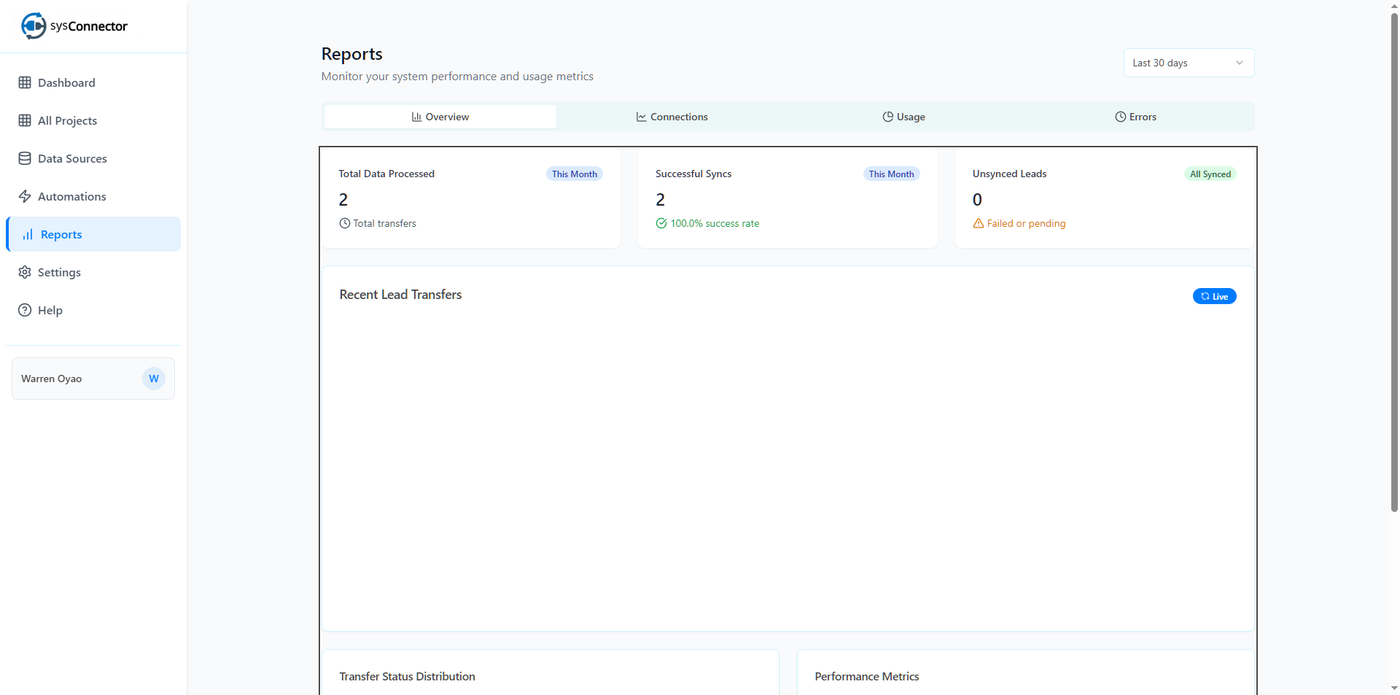
3. sysConnector Reports
Open the Reports section.
View live data transfer activity and processing status.
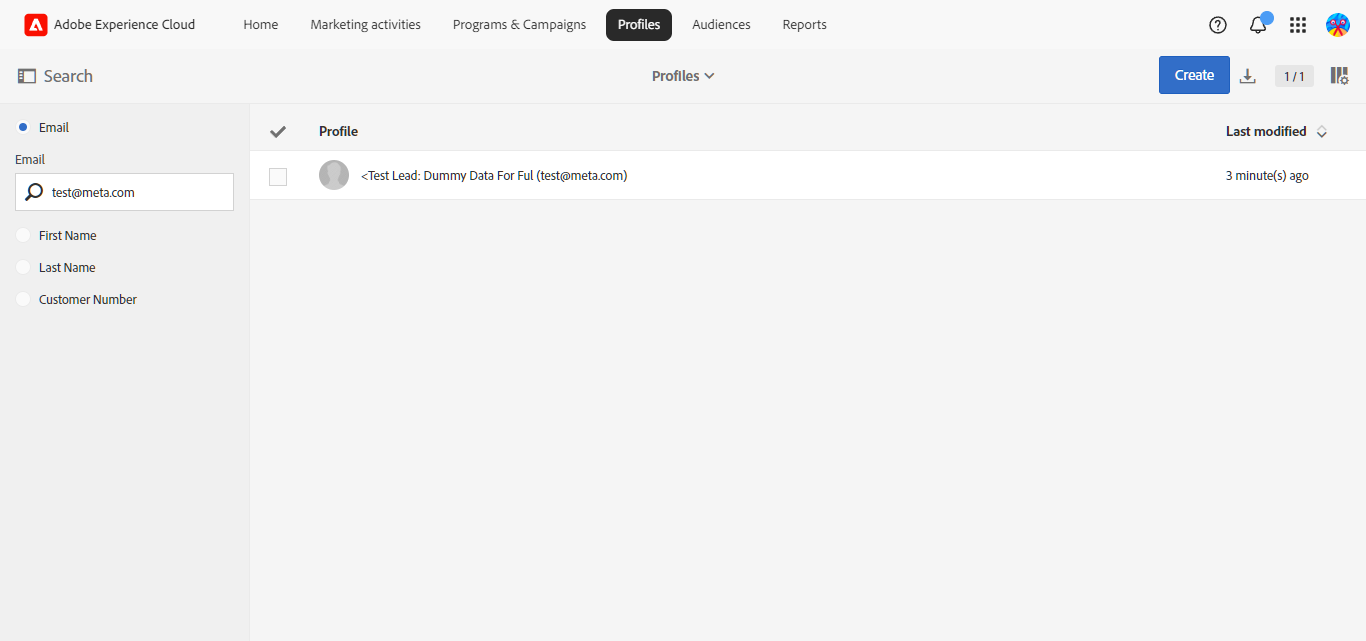
4. Destination
Log in to your CRM
Confirm the test lead appears in the correct destination.
Phase 4: Troubleshooting
If the lead does not appear in sysConnector or your Destination Application :
Check Facebook Status
If status is Failed, review the error code in the testing tool.
Check App Permissions
Ensure your Facebook account has Advertiser access or higher.
Check Mapping Errors in sysConnector
Review Reports and Settings notifications.
Common issues include data type mismatches or missing required fields.
Final Validation Checklist
Facebook status shows Success
Lead appears in sysConnector Preview
Lead appears in sys Connector Reports
Lead appears in Destination Application